Software Agreements for Use on M3
Some software packages and data collections require that you accept a licence agreement before using them on M3 or other eResearch systems.
Viewing Available Agreements
To see all available software and data collection agreements:
- In the left navigation, expand Software Agreement.
- Click All Software Agreements.
The Software And Data Collection Agreements page lists all agreements:
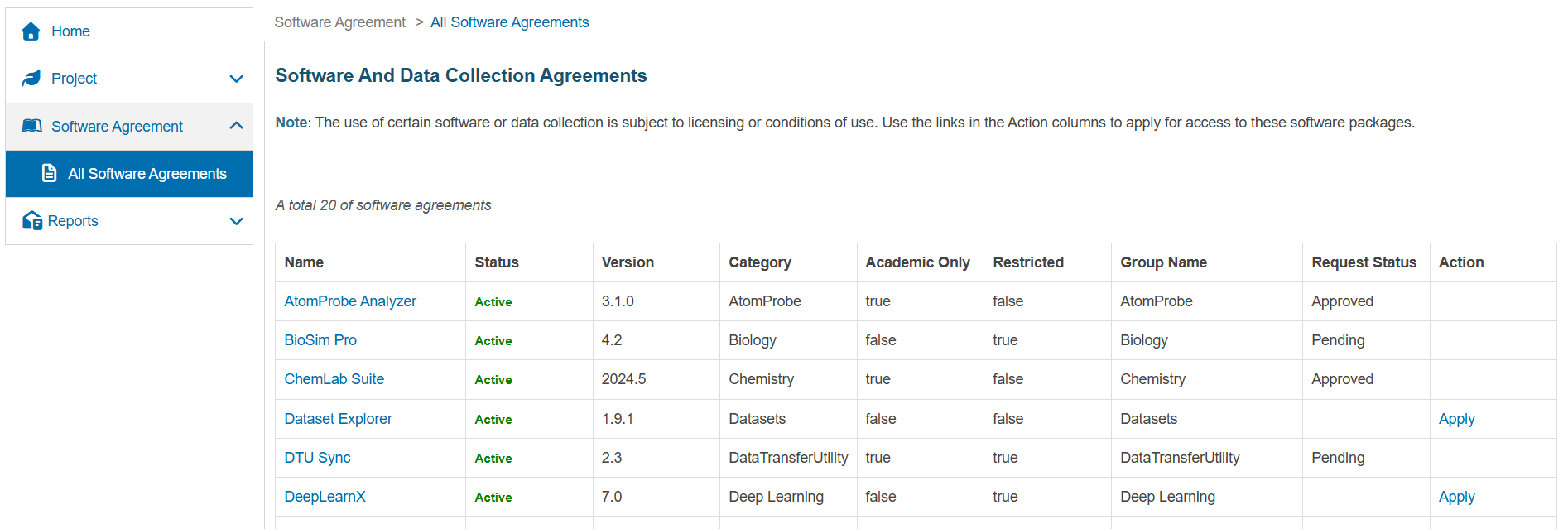
The table shows, for each software package:
| Field | Description |
|---|---|
| Name | The software or data collection name. |
| Status | Whether the agreement is currently Active. |
| Version | The licensed version. |
| Category | Functional category (for example, Biology, Deep Learning). |
| Academic Only | Whether use is restricted to academic purposes. |
| Restricted | Whether special approval is required. |
| Group Name | The Unix or filesystem group associated with the software. |
| Request Status | Your current agreement status (for example Approved or Pending). |
| Action | A link to apply for access when available. |
Applying for a Software Agreement
To apply for a specific software agreement:
- On the All Software Agreements page, locate the desired software.
- Click Apply in the Action column.
This opens the Request For Software And Data Collection Agreement page:
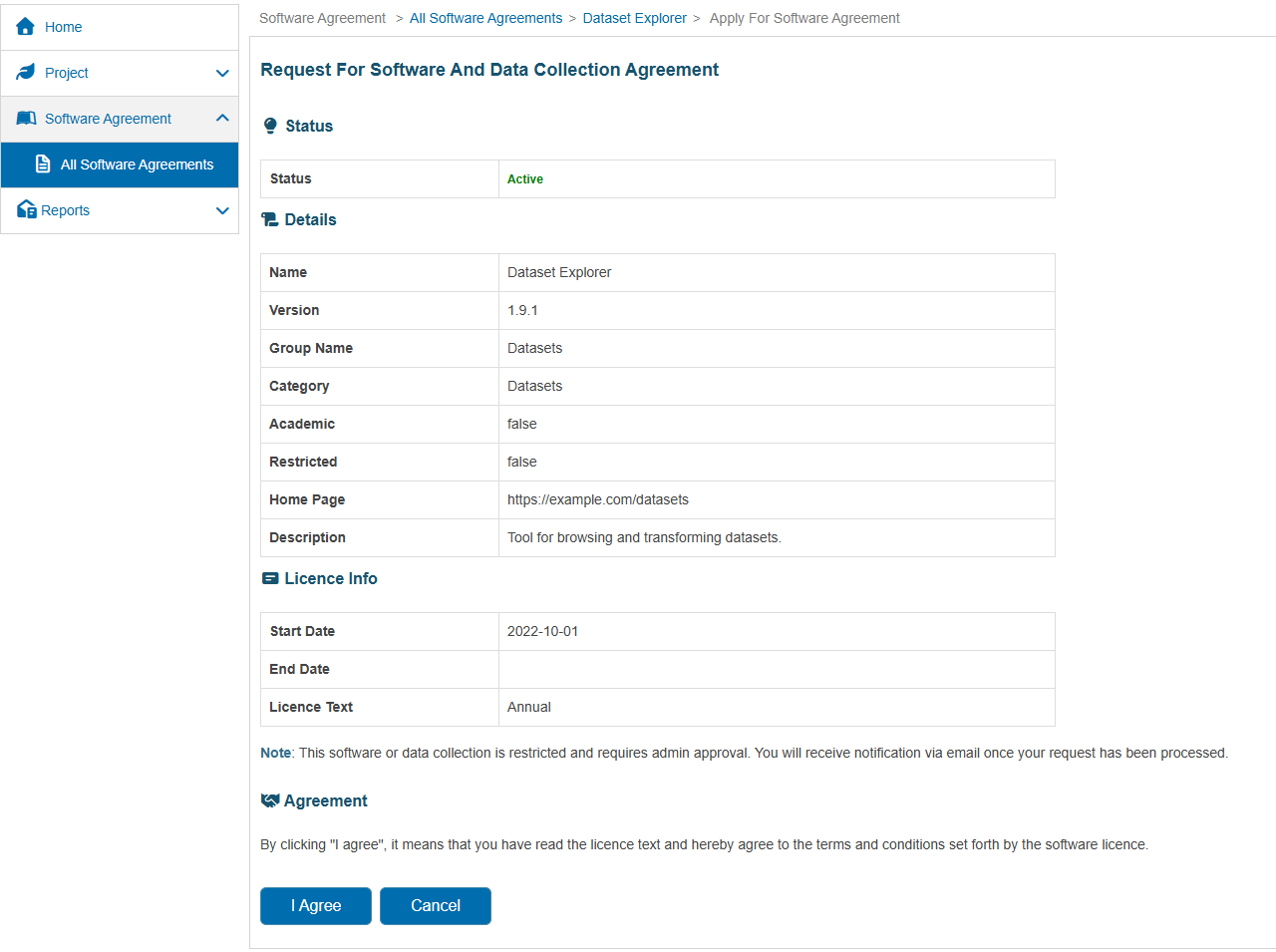
The page has several sections:
- Status – shows whether the agreement itself is Active.
- Details – name, version, group, category, academic flag, restricted flag, home page and description.
- Licence Info – licence start and end dates and a short licence label.
- Agreement – the text explaining what it means to accept the agreement.
Read the information carefully, then click I Agree to submit your request, or Cancel to go back without applying.
Restricted vs Non‑Restricted Software
The Restricted column determines how your request is processed:
-
Restricted = true
- Your request must be reviewed and approved by an administrator.
- The Request Status will show Pending until it is processed.
- You will receive a notification once the agreement has been approved or declined.
-
Restricted = false
- Your request is usually approved automatically when you click I Agree.
- The Request Status should change to Approved immediately.
- You can then use the software on M3 where it is installed.
Using Approved Software on M3
Once your request is approved:
- You are added to the associated software group (for example, the group shown in the Group Name column).
- After group membership updates have propagated, you can run the software on M3 in accordance with the licence conditions.
- Remember that Academic Only agreements may be used only for academic, non‑commercial research.
If you believe you should have access to a software package but do not see it listed as Approved, check your agreement status and contact support if necessary.